WhatsApp Agent Analytics – Measuring Success and Gaining Insights
The Analytics Dashboard for WhatsApp Agents helps you monitor message delivery, engagement, conversions, and optimize WhatsApp-specific performance.
Filter and Explore Your Data
At the top of the dashboard, you’ll find date filters that let you view your WhatsApp Agent’s performance over different time periods—such as the last 7 days, last 30 days, or a custom date range. When you change the filter, all the metrics update automatically to show data for the selected period.
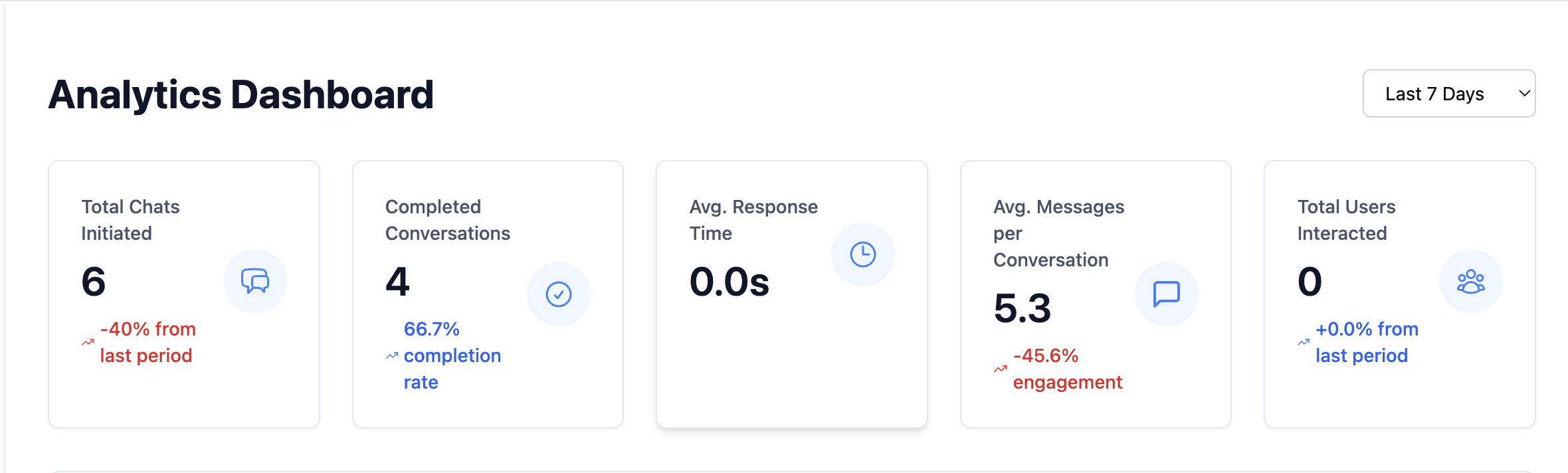
Performance Overview
This section gives a quick summary of your WhatsApp Agent’s KPIs to check delivery health and engagement.
- Total Messages Sent: Number of WhatsApp messages (session + template) sent during the selected timeframe.
- Delivered / Failed: Delivery rate and number of failures (invalid numbers, provider errors).
- Average Response Time: Average time users take to reply to WhatsApp messages.
- Active WhatsApp Users: Unique WhatsApp users who received or replied to messages in the timeframe.
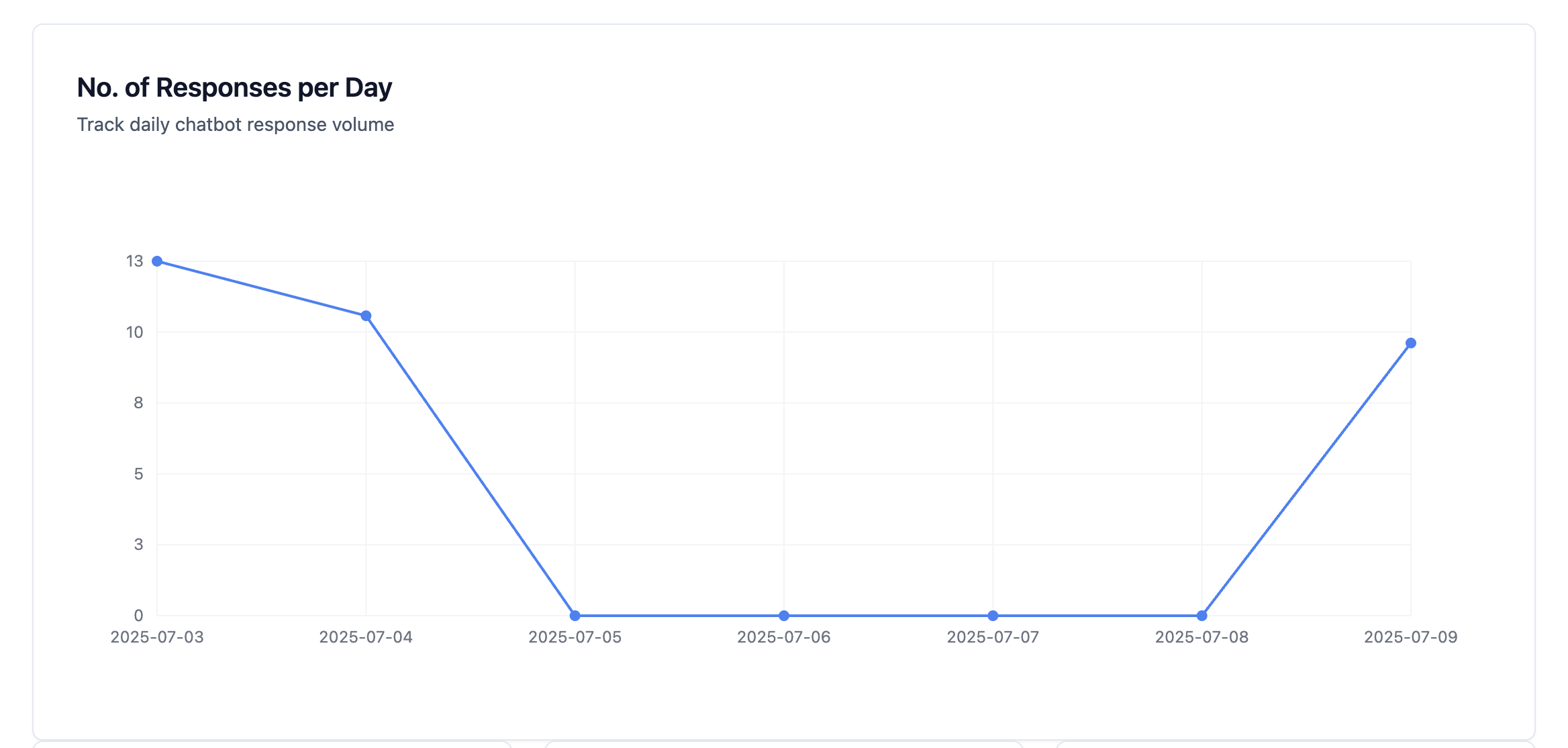
User Behavior and Engagement Patterns
Understand how recipients interact with WhatsApp messages and flows.
- Opt-in vs. Active: Track how many opted-in contacts are actively engaging with messages.
- Message Type Performance: Compare session messages vs. template messages (open/reply rates).
- Fallback & Unrecognized Replies: Rate of replies the agent could not handle; useful to tune NLP and templates.
Measuring Conversions
Track how WhatsApp interactions convert into business outcomes.
- Leads via WhatsApp: Count of leads captured originating from WhatsApp conversations.
- Conversion Rate (WhatsApp): Percentage of WhatsApp conversations that converted into leads or desired actions.
- Conversion by Template: See which approved templates drive the best responses and conversions.
- Conversion by Source: If you run multi-channel flows, compare WhatsApp conversions vs. web or mobile.
Troubleshooting & Delivery Notes
- Verify phone numbers are in E.164 format for best delivery.
- Messages outside the 24-hour window must use approved templates.
- Use delivery/failure logs to identify provider or formatting issues.
Cost & ROI Analysis (Coming Soon)
This section will show WhatsApp-specific costs (template fees, provider costs) and ROI relative to leads or conversions from WhatsApp.
With WhatsApp Agent analytics you can optimize templates, timing, and message content to improve delivery, engagement, and conversion for your WhatsApp channel.
Best Practices for WhatsApp Analytics
- Monitor delivery rate first: A delivery rate below 90% usually indicates phone number formatting issues or users who have blocked the number. Fix these before optimizing content.
- Compare templates side-by-side: Use the Conversion by Template metric to identify which approved templates generate the most replies—then retire underperforming ones.
- Track opt-out trends: If opt-out rates are rising, look at the day and time of your last send—frequency and timing are the most common causes.
- Align analytics review with your campaign schedule: Check the dashboard within 24 hours of sending a campaign to capture peak engagement data before the window closes.
Troubleshooting
Delivery count is lower than the number of contacts I targeted.
This usually means some contacts have invalid or non-WhatsApp numbers. Verify contacts are in E.164 format (e.g., +15551234567) and have active WhatsApp accounts.
The Conversion Rate metric shows 0% even though users replied. Conversions are only counted when a user completes the configured conversion action (e.g., submitting a lead form). Replies alone do not count as conversions unless a conversion event is triggered.
Fallback & Unrecognized Replies percentage is very high. High fallback rates indicate the agent's NLP is not recognizing common user replies. Review the most frequent unrecognized inputs and add them as training examples or update your response templates.
The dashboard does not update after changing the date filter. Refresh the page after selecting a new date range. If data still appears stale, wait a few minutes as analytics may have a short processing delay.
Frequently Asked Questions
What counts as an "Active WhatsApp User"? An active user is any unique WhatsApp contact that either received a message from your agent or sent a message within the selected time period.
Can I export analytics data to a spreadsheet? Raw analytics export depends on your plan. Contact support for CSV export options or use the Kipps.AI Developer API to pull metrics programmatically.
Why do my "Leads via WhatsApp" numbers differ from what I see in the Contacts section? The analytics dashboard counts leads generated through WhatsApp conversations specifically. Leads uploaded manually via CSV or added through other channels are counted separately.
How is Average Response Time calculated? It is calculated as the average time between your agent sending a message and the user replying, across all conversations in the selected period.
Does the analytics dashboard update in real time? Metrics are updated on a short delay—typically within a few minutes. For real-time call or message monitoring, use the live feed or webhook notifications instead.
Related Articles