Voicebot – Phone Number Integration
Learn how to connect real-world phone numbers to your Voicebot and enable inbound and outbound calling using SIP trunks.
This guide will walk you through the complete process of connecting a real-world phone number to your Voicebot, enabling it to make and receive calls. This is a multi-stage process that involves:
- Creating a global Phone Number Integration with your telephony provider's details.
- Navigating to your Voicebot's dashboard and linking it to that specific integration.
- Enabling Inbound and Outbound call capabilities for that number.
Part 1: Create a Phone Number Integration
First, you need to register your phone number with our platform. This makes it available to be linked to one or more of your agents.
For detailed instructions, please see the guide on Creating a Phone Number For Integration.
Part 2: Link the Integration to Your Voicebot
Now, you must tell a specific Voicebot that it is allowed to use this phone number.
-
Navigate to Your Voicebot's Dashboard:
- Go to the main dashboard for the Voicebot you want to connect.
-
Go to the "Phone Numbers" Tab:
- Within the Voicebot's dashboard, click on the "Phone Numbers" tab.
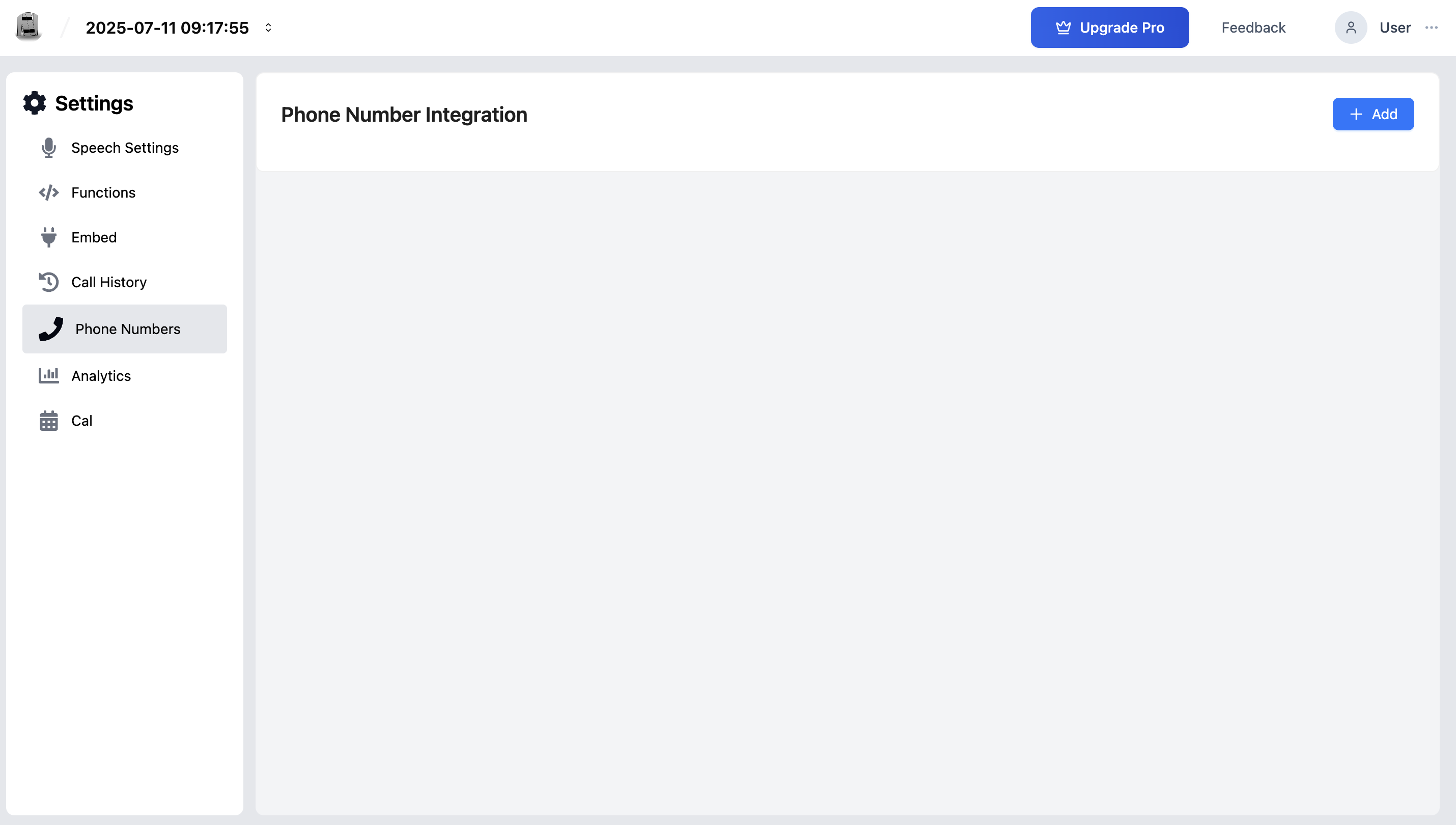
- Within the Voicebot's dashboard, click on the "Phone Numbers" tab.
-
Click the "Add" button:
- On the Phone Numbers page, click the "Add" or "Link Number" button. This will reveal a dropdown menu.

- On the Phone Numbers page, click the "Add" or "Link Number" button. This will reveal a dropdown menu.
-
Select the Phone Number:
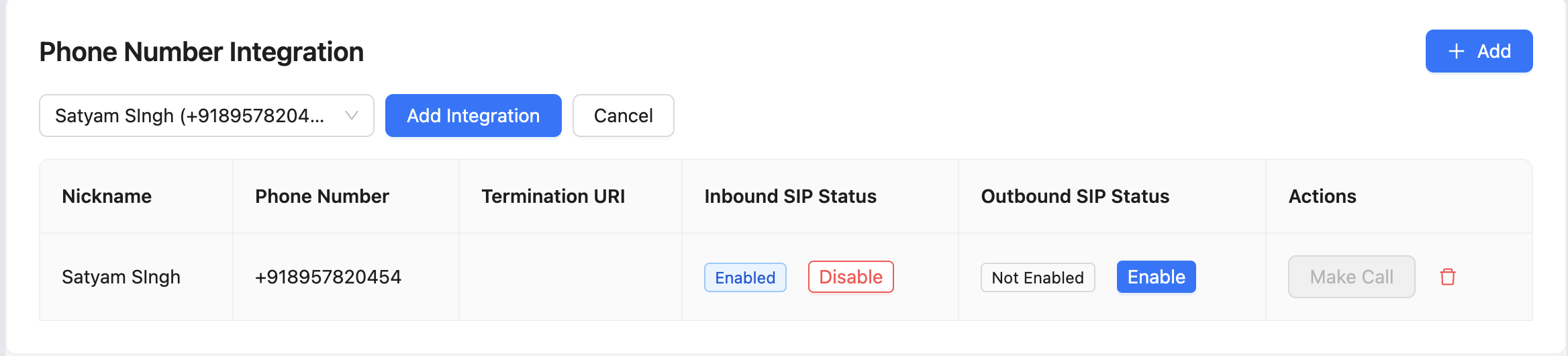
- You will see a list of all the phone number integrations you created in Part 1.
- Find the number you want to link and check the box next to it.
- Click the "Save" or "Link" button.
The phone number is now officially associated with this Voicebot.
Part 3: Enable Inbound and Outbound Calls
The final step is to activate the call capabilities for the linked number. This is where you configure the SIP Trunks that handle the call traffic.
-
Stay on the Voicebot's "Phone Numbers" Tab:
- The list of linked numbers will now show status indicators for "Inbound SIP Status" and "Outbound SIP Status". Initially, they will be "Not Enabled".
Enabling Inbound Calls (Receiving Calls)
- Click "Enable": In the "Inbound SIP Status" column for your number, click the "Enable" button.
- Automatic Setup: The system will automatically create the necessary SIP trunk on our end. The status will change to "Enabled".
- Get Your SIP URI: A unique SIP URI (e.g.,
sip:12345@your-sip-domain.com) will now be displayed for this integration. - Configure Your Provider: Copy this SIP URI. Go to your telephony provider's dashboard (Twilio, Telnyx, etc.) and paste this URI into the "Call Forwarding" or "Origination SIP URI" field for your phone number.
Your Voicebot is now ready to receive calls on this number.
Enabling Outbound Calls (Making Calls)
-
Click "Enable": In the "Outbound SIP Status" column, click the "Enable" button.
-
Enter SIP Credentials: A modal will appear asking for your provider's outbound SIP trunk credentials.
- Termination URI: The SIP address of your provider's server for outbound calls.
- SIP Username: The username for authenticating with your provider.
- SIP Password: The password for authenticating with your provider.
-
Save Credentials: Click "Save". The system will use these details to create the outbound trunk. The status will change to "Enabled".
Your Voicebot is now fully configured to both make and receive calls using this phone number.
Disabling Trunks
You can disable either inbound or outbound capabilities at any time by clicking the "Disable" button in the respective status column. This will tear down the associated SIP trunk but will not delete the integration itself, allowing you to re-enable it later.
Best Practices
- Test inbound calls before enabling outbound: Enable and test inbound calling first to confirm the SIP trunk is working correctly, then configure outbound. This makes it easier to isolate issues.
- Keep SIP credentials secure: Your outbound SIP Username and Password grant billing access to your telephony provider. Treat these with the same care as any financial credential.
- Enable only the call directions you need: If your voicebot only handles inbound support calls, do not enable outbound SIP unless you plan to use it. Fewer open connections reduce the attack surface.
- Label integrations with the agent they serve: Use the phone number Nickname (set in the global Phone Numbers section) to reference which voicebot it is linked to, making auditing easier as your deployment grows.
Troubleshooting
Inbound SIP Status says "Enabled" but calls are not reaching the VoiceAgent. Confirm the SIP URI shown in Kipps.AI has been correctly pasted into your telephony provider's Origination SIP URI or Call Forwarding field. A single character error in the URI will prevent call routing.
Outbound calls fail immediately with a connection error. Double-check the Termination URI, SIP Username, and SIP Password entered in the outbound modal. These must match exactly what your telephony provider specifies in their outbound SIP trunk settings.
The phone number I want is not listed in the "Add" dropdown. The dropdown only shows numbers registered in the global Phone Numbers section. If the number is missing, go to the Phone Numbers section and add it first, then return here to link it.
I disabled a SIP trunk but calls are still connecting. SIP trunk teardown can take up to 60 seconds to propagate through the telephony network. If calls continue beyond that window, contact your telephony provider to confirm their side is updated.
Frequently Asked Questions
What telephony providers work with the SIP trunk setup? Any provider that supports SIP trunking works—Twilio, Telnyx, Vonage, and similar services. The specific steps to add the SIP URI or outbound trunk credentials vary by provider; consult your provider's documentation for their field names.
Can I link multiple phone numbers to one VoiceAgent? Yes. You can link multiple numbers to a single VoiceAgent. Each number needs inbound and/or outbound SIP enabled separately.
What is a SIP URI and why do I need to copy it to my provider? A SIP (Session Initiation Protocol) URI is the address that tells your telephony provider where to send incoming calls. By pasting Kipps.AI's SIP URI into your provider's settings, you instruct the provider to forward calls on that number to your VoiceAgent.
Do I need a SIP trunk provider or can I use a regular mobile number? The phone number integration uses SIP, so you need a telephony provider that offers SIP trunking. Standard mobile numbers cannot be directly pointed to a SIP address—purchase a SIP-enabled DID (Direct Inward Dialing) number from a compatible provider.
Is there a per-minute charge from Kipps.AI for phone calls? Kipps.AI does not charge per-minute call fees. Your telephony provider charges for the calls according to their pricing. Check your provider's rate card for inbound and outbound rates.
Related Articles