Create Campaign for Google Ads Lead Form Audience
Learn how to set up and launch a voice campaign using Google Ads Lead Forms as your audience source. This guide covers integration, campaign configuration, lead capture, and real-time analytics.
This guide explains how to create a campaign using Google Ads Lead Form as your audience source. Integrating Google Ads allows you to automatically capture leads from your Google ad forms and engage them through your campaign workflows.
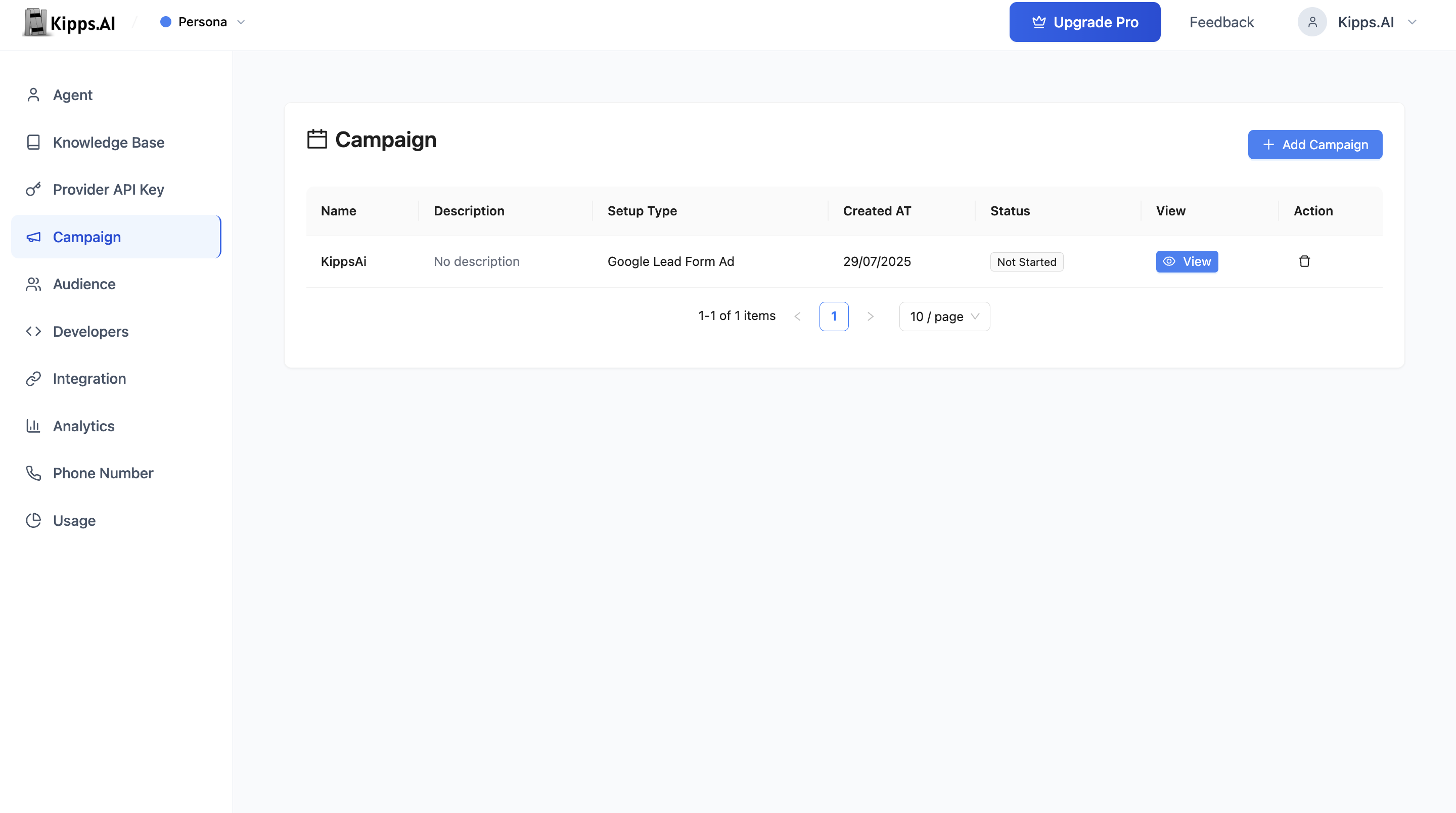
1. Integrate Google Ads Lead Form
- Navigate to the Integrations page from the main dashboard.
- Click on the Google Lead Form Ad option or card.
- Fill in the required Google Ads configuration:
- App ID (optional): Your Google Ads App ID.
- App Secret (optional): Your Google Ads App Secret.
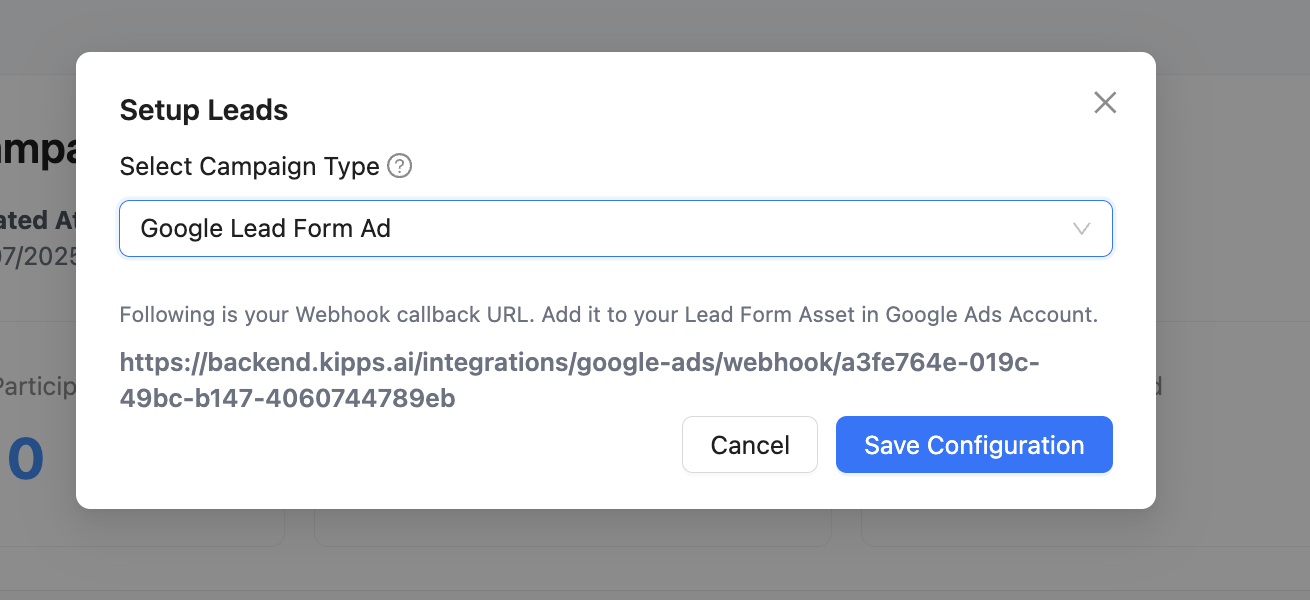
- After setup, you will receive a Webhook Callback URL.
- Copy this Webhook URL and add it to your Google Ads Lead Form Asset as the webhook destination.
- (Optional) Set up field mapping for phone number and name if prompted.
2. Start Creating a Campaign
- Go to the Campaign tab.
- Click Add Campaign or + Create Campaign.
3. Fill Campaign Details
- Campaign Name: Enter a descriptive name.
- Description: Add details about the campaign’s purpose.
- Duration: Set how many days the campaign should run.
4. Select Setup Type as Google Lead Form Ad
- In the Setup Type or Audience Source field, select Google Lead Form Ad from the dropdown.
- This configures the campaign to use Google Ads leads as the audience.
5. Configure Campaign Settings
- Select Voice Agent: Choose the AI voicebot that will make the calls (for voice campaigns).
- Initial Message: Set the opening message the bot will deliver.
- System Prompt (optional): Provide specific instructions for the bot’s behavior.
- Lead Qualification Prompt: Define how the bot should qualify leads.
- Lead Qualification Params: Add custom fields like
Interested,Budget, etc.
6. Review and Launch
- Review all campaign settings.
- Click Create to save the campaign.
- Once setup is complete, start the campaign from the campaign list.
Features
- Automatic Lead Capture: Google Ads leads are fetched in real-time and used as campaign audiences.
- Webhook Integration: Seamless syncing via Google’s webhook infrastructure.
- No Manual Uploads: Eliminate the need for CSV imports.
- AI Voicebot Integration: Use intelligent bots for automated, human-like conversations.
- Custom Prompts: Tailor your message and lead qualification strategy.
- Lead Qualification: Tag and qualify leads based on their interaction.
- Analytics: View delivery, response, and conversion metrics live.
- Downloadable Reports: Export leads and results in CSV format.
- Status Tracking: Monitor campaign progress (Not Started, Ongoing, Completed).
Monitoring and Managing Campaigns
View Campaign Status and Analytics
- Get real-time stats: total participants, contacted, replied, failed, and conversions.
Download Lead Data and Call Transcripts
- Export call results for deeper analysis.
Drill Down into Each Lead
- View details like call status, lead responses, and qualification parameters.
Tip:
You can revisit the Google Lead Form Ad integration anytime to update webhook settings, change credentials, or troubleshoot syncing issues.
Troubleshooting
Google Ads leads are submitted but are not appearing in the campaign. Verify the Webhook Callback URL from Kipps.AI has been entered in the correct field within your Google Lead Form Asset settings. In Google Ads, this is set under the lead form extension's "Webhook" section—not in the campaign or ad group settings.
The webhook is configured but test submissions from Google Ads are not triggering calls. Google Ads provides a "Send test data" button in the lead form webhook settings. Use it to verify Kipps.AI receives the payload. If the test succeeds but real submissions don't trigger calls, check whether the lead form is live and the ad campaign is actively serving.
The campaign runs but the Initial Message is the same for every lead regardless of their ad details. The Initial Message is a static template. To personalize it with lead-specific data (e.g., the product they inquired about), use the Lead Qualification Params to capture that data and reference it in your System Prompt instructions.
Frequently Asked Questions
Can I connect multiple Google Ads accounts to the same campaign? The integration supports one Google Ads webhook endpoint per Kipps.AI account. If you run lead forms across multiple Google Ads accounts, you would need to configure each to send to the same Kipps.AI webhook URL.
How quickly does a new Google Ads lead trigger an outbound call? Google sends webhook notifications in near real-time when a lead submits the form. Kipps.AI processes the webhook and queues the outbound call within seconds—making it possible to reach leads within minutes of them expressing interest.
What lead data is passed from Google Ads to Kipps.AI? Google Ads sends the data captured by your lead form fields (name, phone number, email, and any custom questions). The fields available depend on what you configured in your lead form asset.
Does the integration work with Google Ads Performance Max campaigns? Yes. Lead Form Extensions (now called Lead Form Assets) are supported across Search, Display, Video, and Performance Max campaigns. As long as the lead form asset uses the same webhook URL, leads from any campaign type will be captured.
Can I pause the campaign without disconnecting the Google Ads integration? Yes. Pausing a campaign in Kipps.AI stops outbound calls for that campaign without affecting the webhook integration. New leads captured by Google Ads will queue and be contacted when you resume the campaign.
Related Articles